

In research, product development, and competitive analysis, valuable technical specs, industry reports, and documentation are scattered across the web. Manually copying and pasting text from web pages often results in broken formatting, lost images, and unwanted clutter like sidebar ads and navigation headers. Visual Paradigm NotesKeep simplifies this process with its built-in URL Content Fetching feature.
With just a web link, NotesKeep automatically extracts, cleans, and converts web content into a fully editable, structured note ready for team collaboration and AI-powered queries.
What Does “Fetch from Webpage” Mean?
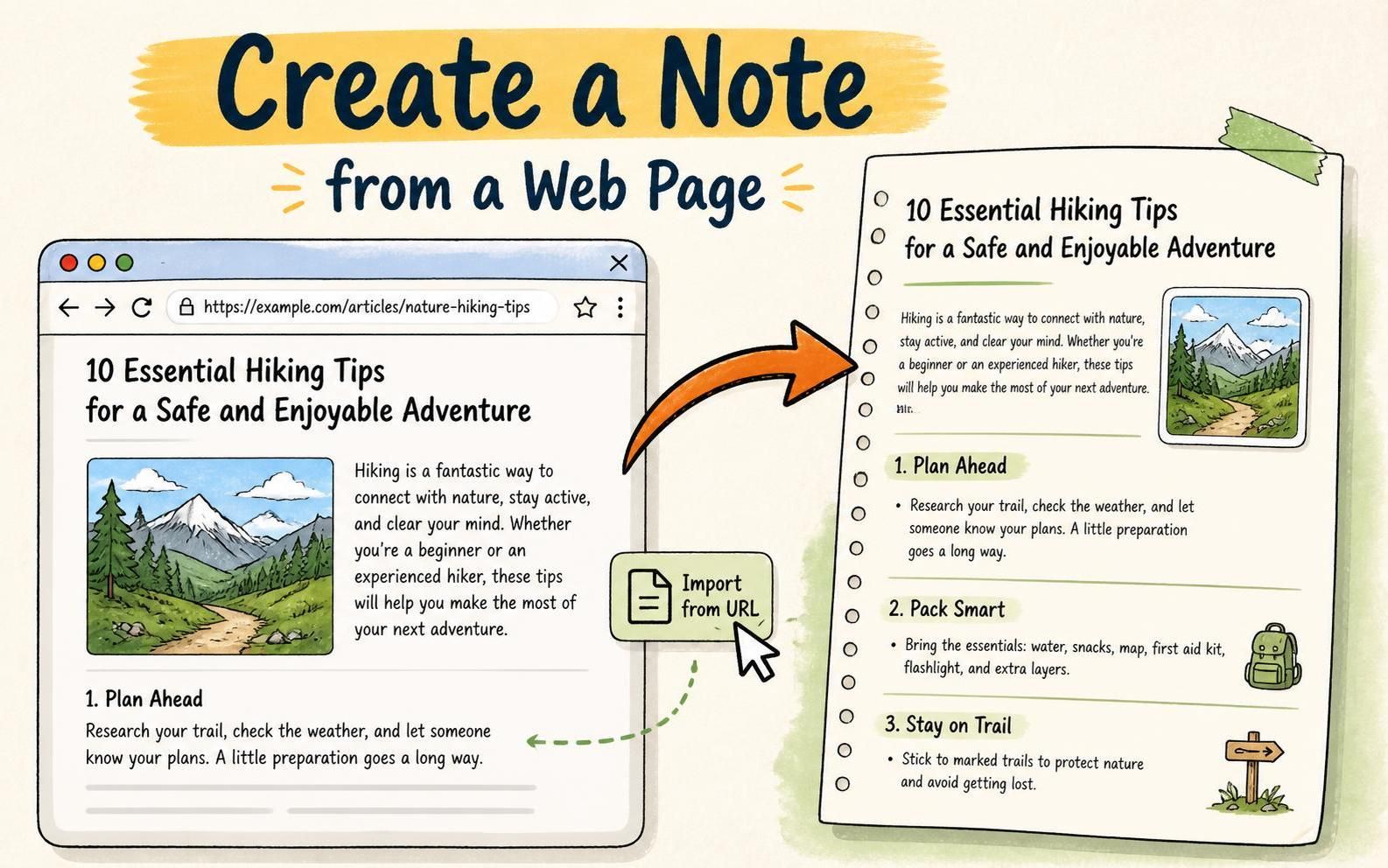
The Fetch from Webpage feature allows you to input any public URL into NotesKeep. The system’s automated web ingestion engine parses the web page, strips away unnecessary elements (such as cookie banners, advertisements, headers, and footers), and converts the main article body and images into a clean rich-text format inside the WYSIWYG editor.
Why is URL Ingestion Useful for Teams?
Importing web content directly into NotesKeep provides several key operational advantages:
- Eliminate Clutter: Automatically filter out distracting website layouts, advertisements, and irrelevant scripts, leaving only core textual and visual information.
- Centralize Research: Bring external documentation, API references, regulatory guidelines, and news articles into your project’s single source of truth.
- AI-Ready Web Data: Converted web content is instantly processed through NotesKeep’s vector indexing engine, allowing you to query web insights via the Visual Paradigm Chatbot.
- Permanent Knowledge Capture: Prevent loss of critical information caused by changing URLs, updated website pages, or broken external links by maintaining a local, editable copy.
How to Fetch and Create a Note from a Web Page (Step-by-Step)
Follow these quick steps to convert any web page into a structured note:
- Initiate Web Fetching:
Open your NotesKeep workspace. In the top action bar, click on New Source and select Fetch from Webpage from the dropdown menu.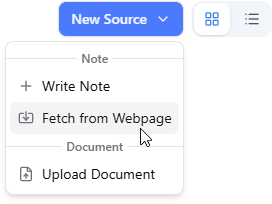
- Enter the Web Page URL:
In the popup dialog box that appears, paste the full web address (URL) of the article or documentation page you want to capture. Click Import in the bottom right corner.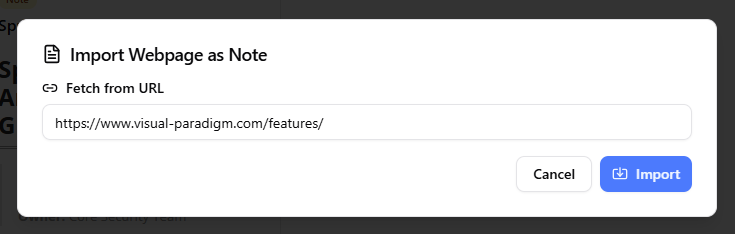
- Edit and Touch Up in the WYSIWYG Editor:
NotesKeep will extract the core page content and open it in the rich-text editor. Here, you can review the imported text, remove any lingering unwanted sections, highlight key takeaways, add structural headers, or assign custom tags (e.g.,market-research,api-docs).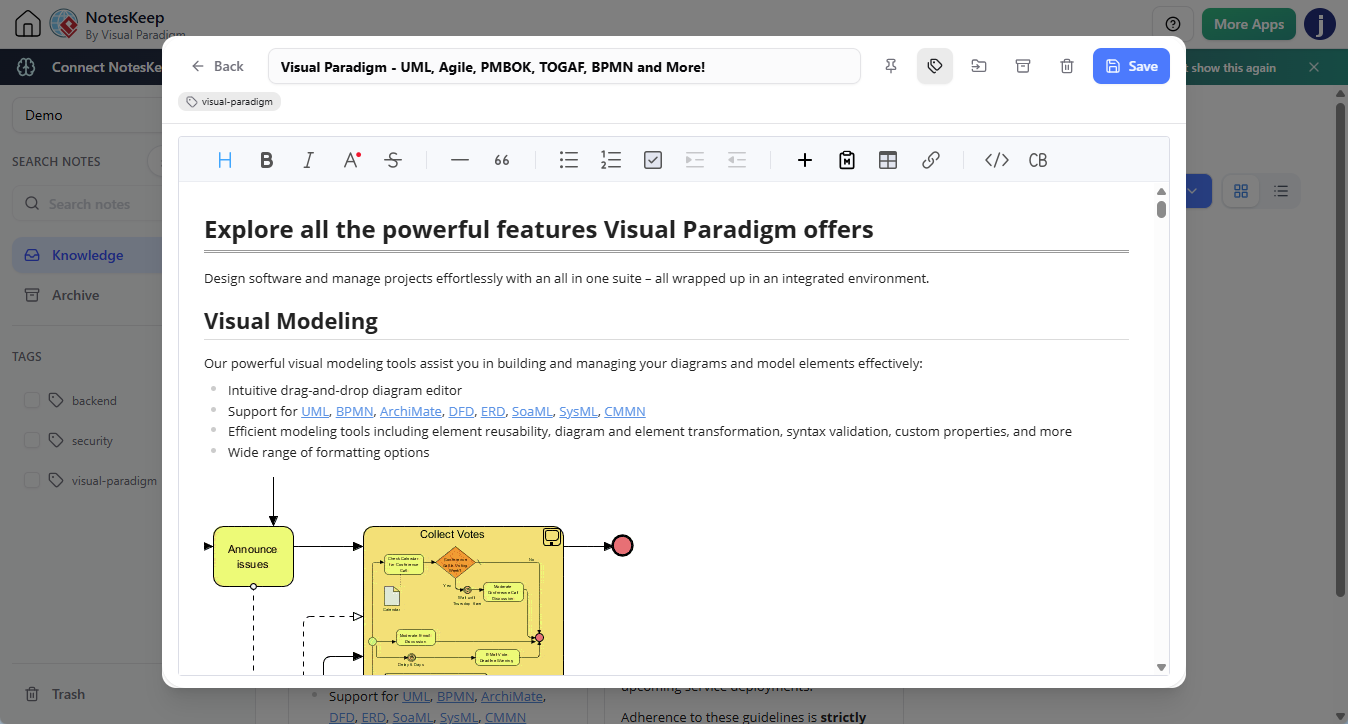
- Save Your Note:
Click the Save button in the top right corner. Your web page note is now created and saved under your active project workspace.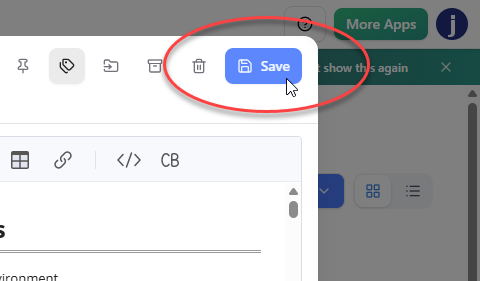
What Happens After You Save Your Web Note?
Once saved, the extracted web page content undergoes NotesKeep’s background ingestion pipeline. The text and embedded images are parsed and indexed into the semantic vector database. You can now use the Visual Paradigm AI Diagramming Chatbot to ask questions based on the web content—such as summarizing key points, comparing web data against internal meeting notes, or generating technical diagrams based on the fetched specs.
Looking for more tutorials?
Explore step-by-step guides for every feature in our centralized user guide hub.
Frequently Asked Questions (FAQ)
Can I fetch content from websites that require a password or login?
NotesKeep’s URL fetching engine processes publicly accessible web pages. For content protected by paywalls or requiring authentication, you can copy the text manually or save the page as a PDF/Word document and upload it via the Upload Document feature.
What happens to images contained within the web page?
Embedded images from the web page are imported alongside the body text. NotesKeep’s computer vision and Optical Character Recognition (OCR) engines scan these images, making text within diagrams and graphics searchable by the AI Chatbot.
Can I edit the web page note after importing it?
Yes. Web page notes behave like standard user-created notes. You can edit the text, add custom tables, adjust tags, or transfer the note between projects at any time.