


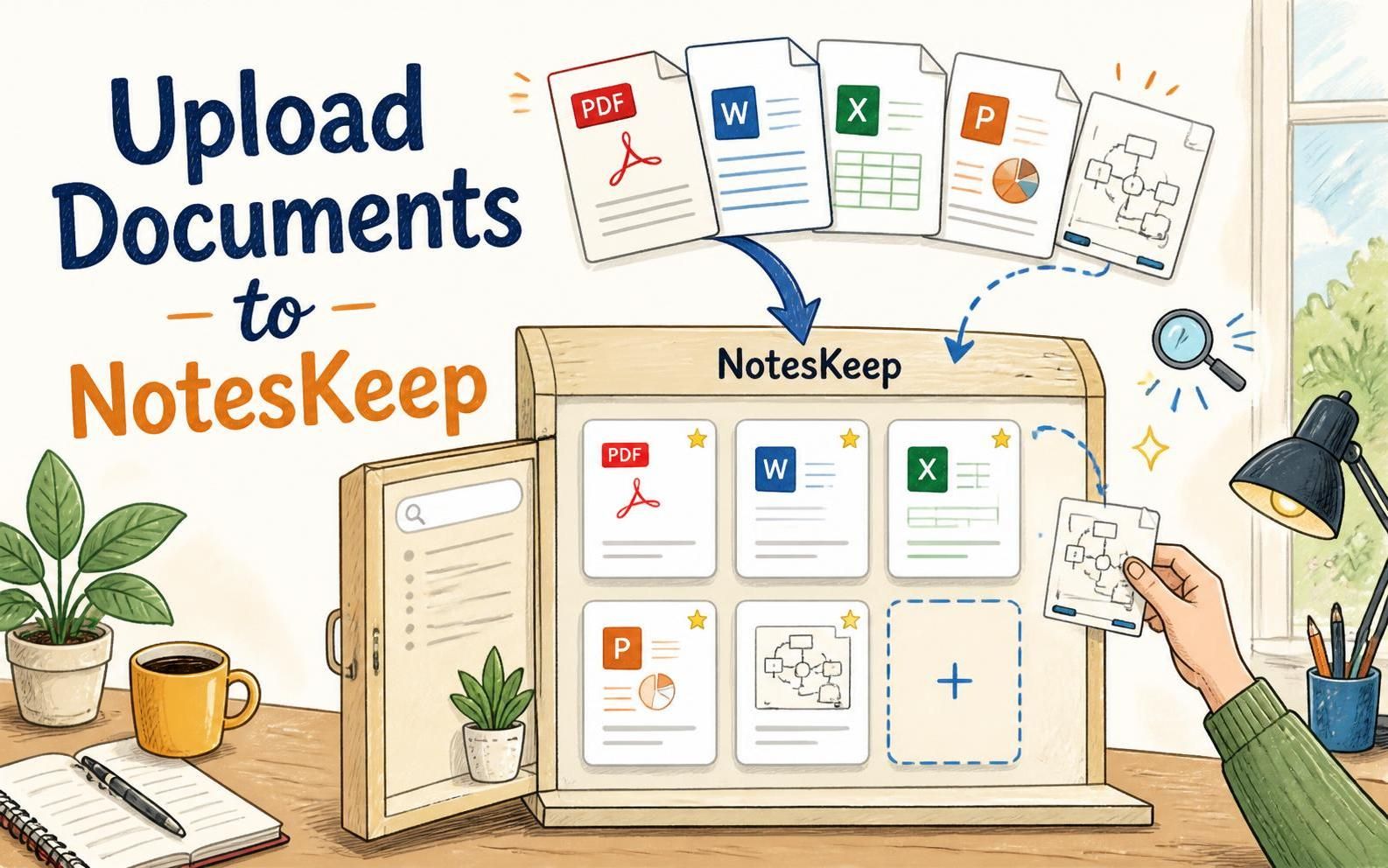
Enterprise teams and technical professionals rarely work with plain text alone. Real-world project knowledge is frequently distributed across Word files, PDF reports, Excel spreadsheets, presentation decks, data schemas, and visual diagrams. Managing scattered files across local hard drives and cloud folders leads to information silos, version confusion, and lost productivity. Visual Paradigm NotesKeep solves this challenge by serving as a unified document management system that transforms static documents into dynamic, AI-ready team knowledge.
By keeping your documents inside NotesKeep, you bridge the gap between file storage and AI intelligence, converting unorganized external files into searchable assets ready for Retrieval-Augmented Generation (RAG) and automated visual analysis.
Why Store and Manage Your Documents in NotesKeep?
Uploading your corporate files and project documents directly into NotesKeep provides several significant operational advantages over traditional cloud drives:
- Universal Multi-Format Ingestion: Centralize almost any file format—including PDF, Word (
.docx), Excel spreadsheets (.xlsx), PowerPoint presentations (.pptx), Markdown, JSON schemas, CSV datasets, eBooks, and raw image files—in one organized platform. - Automated OCR & Vision Processing: Unlike basic file storage systems, NotesKeep scans embedded images, whiteboard photos, scanned PDF reports, and architecture diagrams using Optical Character Recognition (OCR) and computer vision to extract hidden text and structures.
- Instant AI Chatbot Readiness: The moment a document is uploaded, it undergoes semantic vector indexing. You can immediately ask the Visual Paradigm AI Diagramming Chatbot to analyze reports, resolve conflicting specifications, or extract key data points.
- Unified Document and Note View: Manage uploaded documents alongside hand-written notes in a single project workspace using flexible grid views, list views, and tag filters.
Two Simple Ways to Upload Documents in NotesKeep
NotesKeep offers two convenient methods to upload and store your documents. Choose the method that best fits your workflow.
Method 1: Upload via the “New Source” Menu
- Open the Upload Dialog:
Navigate to your active NotesKeep project workspace. In the top navigation bar, click on New Source and select Upload Document from the dropdown menu.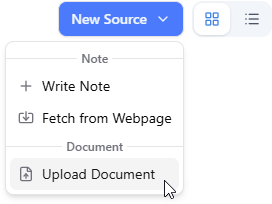
- Select Your Files and Import:
In the modal window that appears, click the file browser area to browse your local computer files, or simply drag your files directly into the highlighted upload drop zone. NotesKeep will upload and parse the files into your current workspace automatically.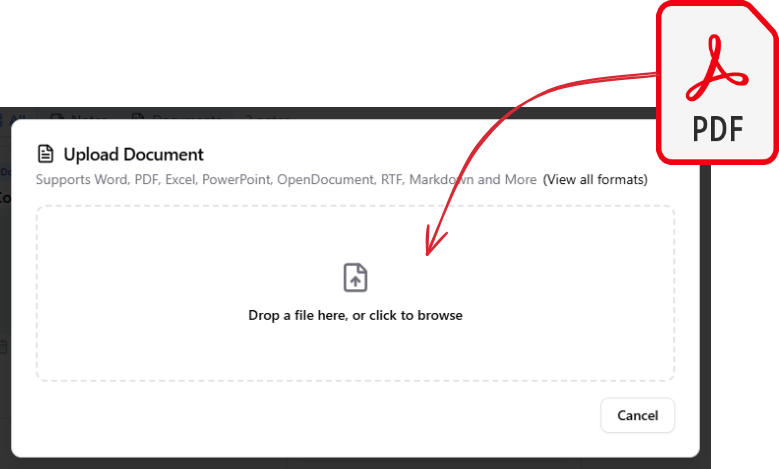
Method 2: Direct Drag-and-Drop Ingestion
- Locate Your Documents:
Open your computer’s file explorer (Finder on macOS or File Explorer on Windows) and select the documents or images you want to import. - Drag Directly into NotesKeep:
Drag the selected files and drop them anywhere onto the main NotesKeep Knowledge workspace window.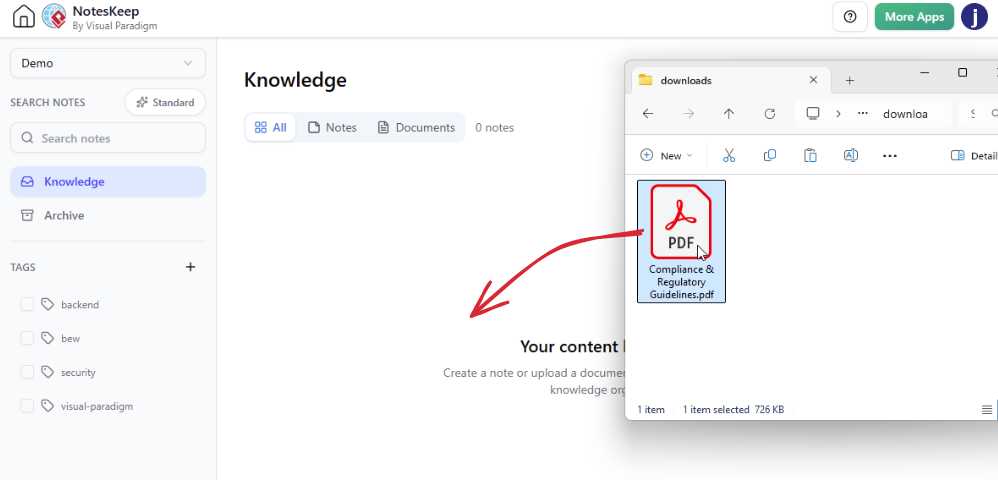
- Automated File Processing:
NotesKeep instantly receives the dropped files and initiates background text extraction, visual parsing, and vector indexing.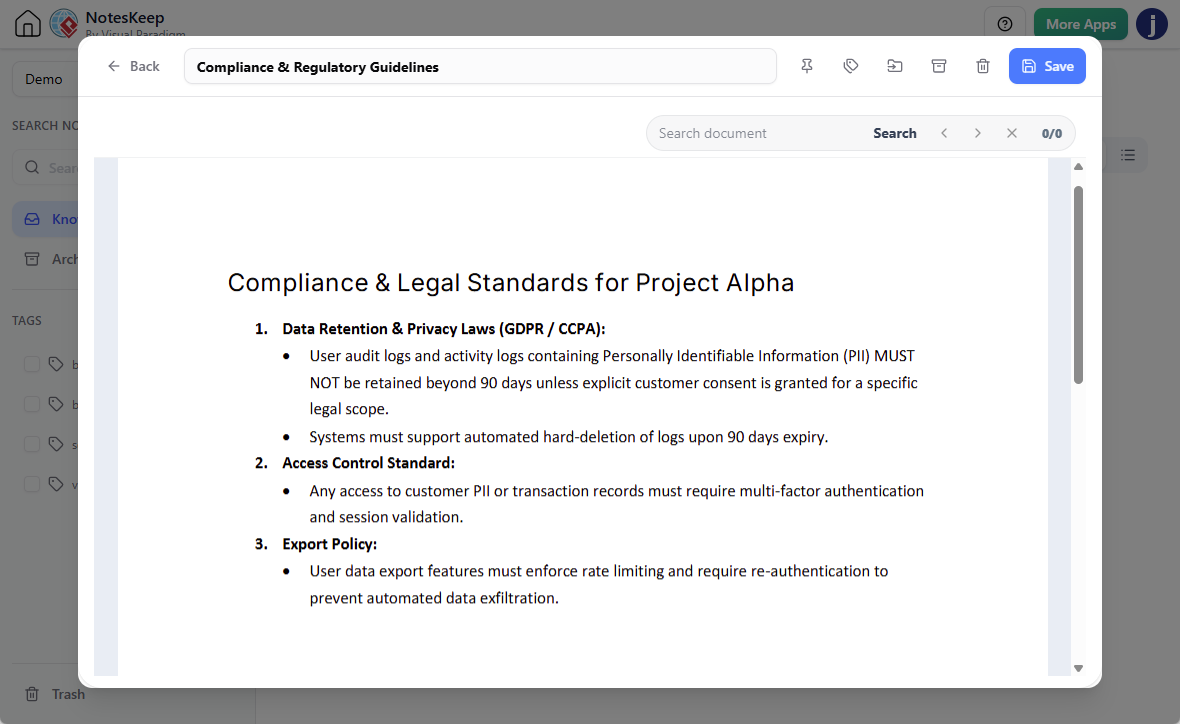
Supported Document Formats in NotesKeep
To ensure your team can centralize all digital assets, NotesKeep supports a broad array of enterprise file extensions:
- Word Documents:
.doc,.docx,.docm - PDF Files: Standard digital PDFs and scanned image-based
.pdffiles. - Spreadsheets & Tabular Data:
.xls,.xlsx,.xlsm,.xlsb,.csv,.tsv - Presentations:
.ppt,.pptx,.pptm,.pps,.ppsx - Text & Markdown:
.txt,.md,.markdown,.rtf - Data Schemas & Code:
.json,.yaml,.yml,.xml,.toml - Graphics & Whiteboard Images:
.png,.jpg,.jpeg,.gif,.svg,.webp,.bmp,.tif,.heic
What Happens After You Upload Your Documents?
Once your documents are uploaded, NotesKeep executes an automated multi-stage ingestion pipeline:
1. Structural Parsing: Text, headers, and bullet points are extracted from documents and converted into editable team notes.
2. Multimodal OCR Analysis: Diagram shapes, text labels within images, and scanned pages are read using computer vision engines.
3. Semantic Vector Indexing: The extracted text and visual metadata are indexed in a high-performance vector database.
After processing, your documents are fully queryable. You can launch the Visual Paradigm Chatbot, enable “Search in NotesKeep,” and ask complex questions like “What are the compliance requirements outlined in our uploaded PDF policy?” or “Summarize the financial projections from our uploaded Excel spreadsheets.”
Looking for more tutorials?
Explore step-by-step guides for every feature in our centralized user guide hub.
Frequently Asked Questions (FAQ)
Can I upload multiple documents simultaneously?
Yes, you can select and drag multiple files into NotesKeep at once. All selected documents will be uploaded, queued, and processed in parallel.
Does NotesKeep preserve the content of scanned PDF files or whiteboard photos?
Yes. NotesKeep features integrated Optical Character Recognition (OCR) and computer vision. Scanned PDFs and visual photos (such as whiteboard sketches or architectural diagrams) are parsed for readable text and layout structures.
How do I view uploaded documents versus created notes?
On your project’s Knowledge page, you can use the real-time category filter tabs (All / Notes / Documents) to isolate uploaded external documents from native rich-text notes quickly.