


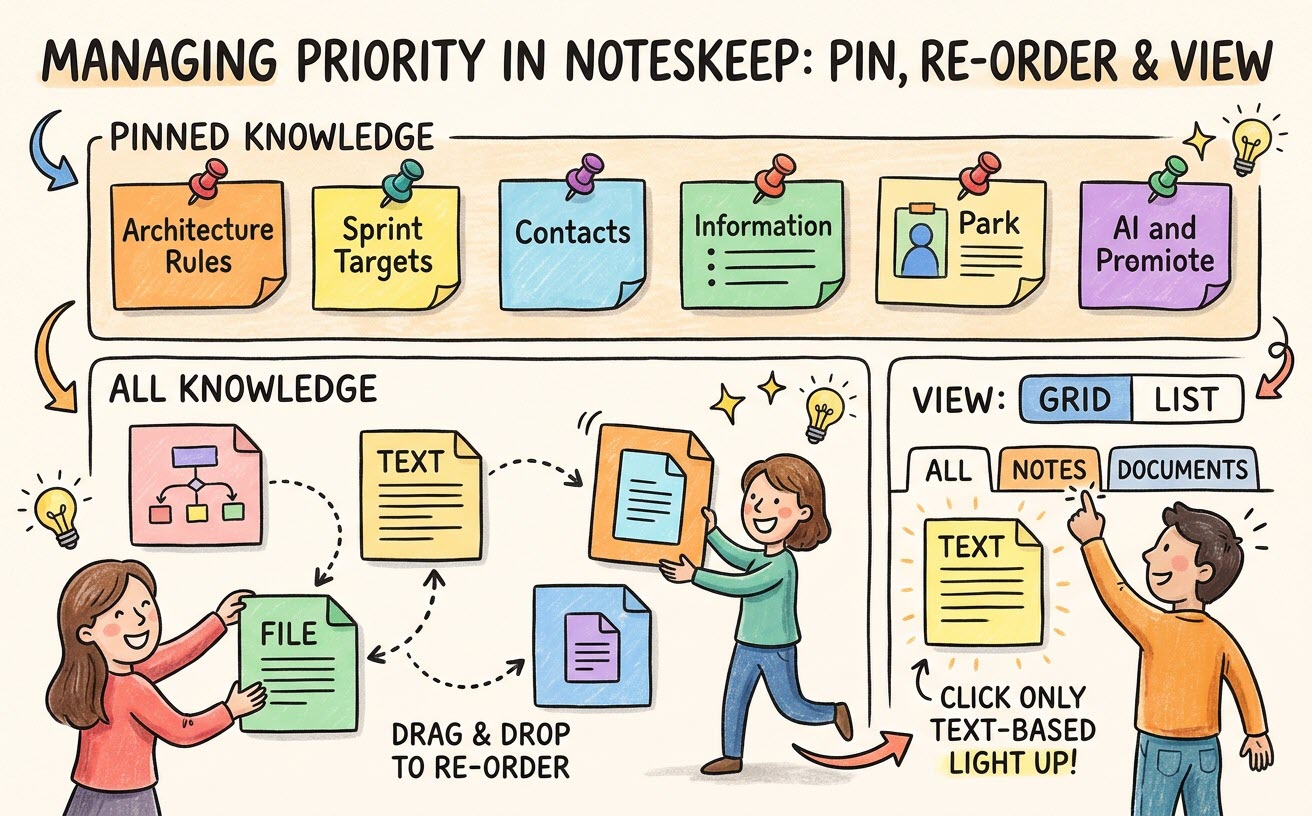
When working on fast-paced enterprise projects, teams access certain reference documents far more frequently than others. Key architectural guidelines, active sprint targets, and emergency contacts shouldn’t get lost beneath newer daily meeting logs. Visual Paradigm NotesKeep provides flexible Priority Management Tools to keep your most critical documentation front and center.
By leveraging note pinning, custom drag-and-drop reordering, and flexible display view filters, you can structure your workspace layout according to your project’s active priorities.
Why Is Workspace Priority Management Important?
Organizing your knowledge workspace by priority and layout preference delivers key productivity benefits:
- Instant Access to High-Frequency Assets: Pin essential specifications and project guidelines to the top of your workspace so team members don’t waste time searching.
- Custom Workflow Reordering: Arrange notes in a custom sequence (such as step-by-step onboarding sequences or priority task lists) using intuitive drag-and-drop controls.
- Tailored Viewing Preferences: Toggle effortlessly between spacious Grid Views and compact List Views based on your operational needs.
- Real-Time Category Filtering: Instantly isolate native rich-text notes from external uploaded documents using one-click category tabs.
How to Pin Critical Notes and Documents to the Top
Pinning locks high-priority knowledge entries to the very top of your project workspace regardless of creation date or title sorting.
- Locate Your Target Item:
On your active project Knowledge page, find the note or document you want to prioritize (e.g., “Sprint 15 Architecture Rules”). - Click the Pin Icon:
Hover over the note or document card and click the Pin icon located on the card menu. - Verify Pin Position:
The pinned item instantly shifts to the top Pinned Knowledge section of your workspace, marked with a visible pin indicator. You can unpin items at any time by clicking the pin icon again.
How to Custom Re-Order Knowledge Using Drag-and-Drop
When chronological or alphabetical ordering doesn’t fit your project structure, NotesKeep allows custom manual reordering:
- Hover Over a Note or Document Card:
Position your cursor over the knowledge item you wish to move. - Drag to Desired Position:
Click and hold the drag handle on the item card, move it to your preferred position within the list or grid, and release. - Automated Layout Persistence:
NotesKeep automatically saves your custom order sequence for the project workspace.
Switching Views and Applying Real-Time Category Filters
Customize how your information is displayed using NotesKeep’s unified view controls:
- Unified Category Filter Tabs:
At the top of your Knowledge list, use the category filter buttons:- All: View all native notes and imported external documents together.
- Notes: Display only rich-text notes and web-fetched notes created inside NotesKeep.
- Documents: Isolate uploaded external files (PDFs, Word docs, spreadsheets, slides, images).
- Grid vs. List View Toggle:
Switch between Grid View (visual card layout ideal for diagram-heavy notes and images) and List View (compact tabular layout ideal for rapid scanning of large file inventories) using the layout toggle in the top toolbar.
Looking for more tutorials?
Explore step-by-step guides for every feature in our centralized user guide hub.
Frequently Asked Questions (FAQ)
How many notes or documents can I pin at one time?
NotesKeep allows you to pin multiple key documents and notes as needed to ensure all critical team resources remain visible at the top of your workspace.
Does drag-and-drop reordering affect the AI Chatbot search results?
No. Manual card ordering is a visual organization tool. The Visual Paradigm AI Diagramming Chatbot utilizes semantic vector indexing to find information based on relevance, context, and custom tags rather than visual screen position.
Can I combine pinned notes with tag filters?
Yes. When you apply a tag filter or project view, pinned items that carry that tag will remain at the top of the filtered result set.