

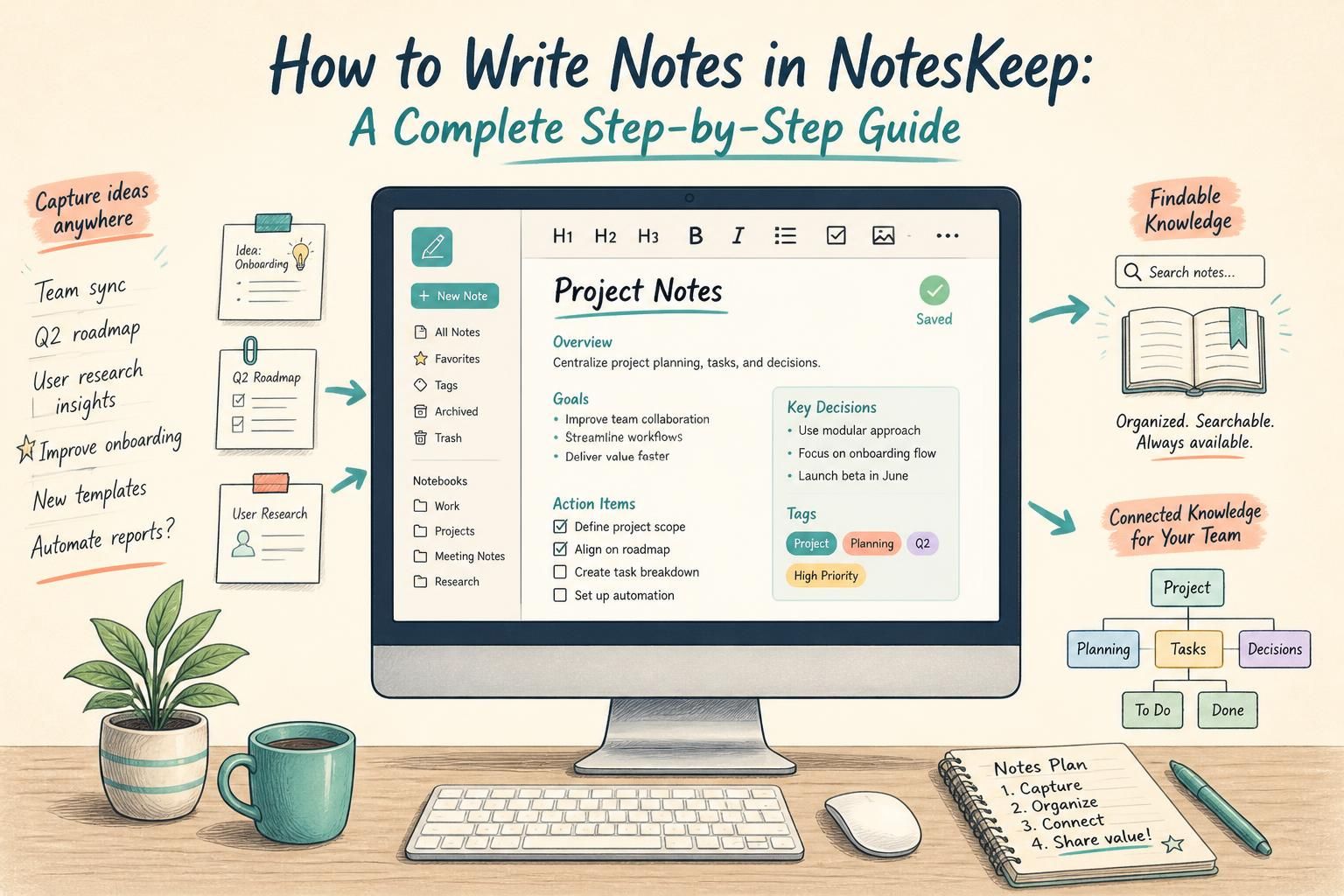
In modern software development, business analysis, and project management, team documentation often gets scattered across disparate tools, offline files, and temporary scratchpads. Visual Paradigm NotesKeep solves this problem by offering an AI-powered knowledge management system where raw ideas seamlessly transform into structured, searchable, and actionable knowledge.
Writing notes inside NotesKeep goes far beyond simple word processing. Every note you create acts as a building block for your team’s central repository, feeding directly into an advanced AI Knowledge Intelligence engine capable of answering queries, reconciling requirement changes, and generating technical diagrams automatically.
Why Write and Store Notes in NotesKeep?
Capturing knowledge directly within NotesKeep offers key operational advantages for individuals and enterprise teams alike:
- Automated AI Ingestion: As soon as you save a note, NotesKeep parses, structures, and indexes the content for Retrieval-Augmented Generation (RAG). You can immediately query your notes using the Visual Paradigm Chatbot.
- Single Source of Truth: Consolidate meeting minutes, system requirements, bug reports, and architectural ideas in one scoped, accessible workspace.
- Native Visual Diagramming Integration: Embedded deep within the Visual Paradigm ecosystem, NotesKeep allows you to insert architectural models, flowcharts, infographics, VPasCode diagram-as-code, and Excalidraw sketches directly inside your note body.
- Precision Retrieval & Citation: Notes are indexed with multi-dimensional tags and project scopes, ensuring AI-generated answers provide exact in-line source citations back to your originating text.
How to Write a New Note in NotesKeep (Step-by-Step)
Follow these quick steps to create and publish a rich-text note in NotesKeep:
- Initiate Note Creation:
Open your workspace in NotesKeep. Look at the top navigation bar, click on New Source, and select Write Note from the dropdown menu.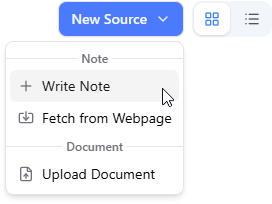
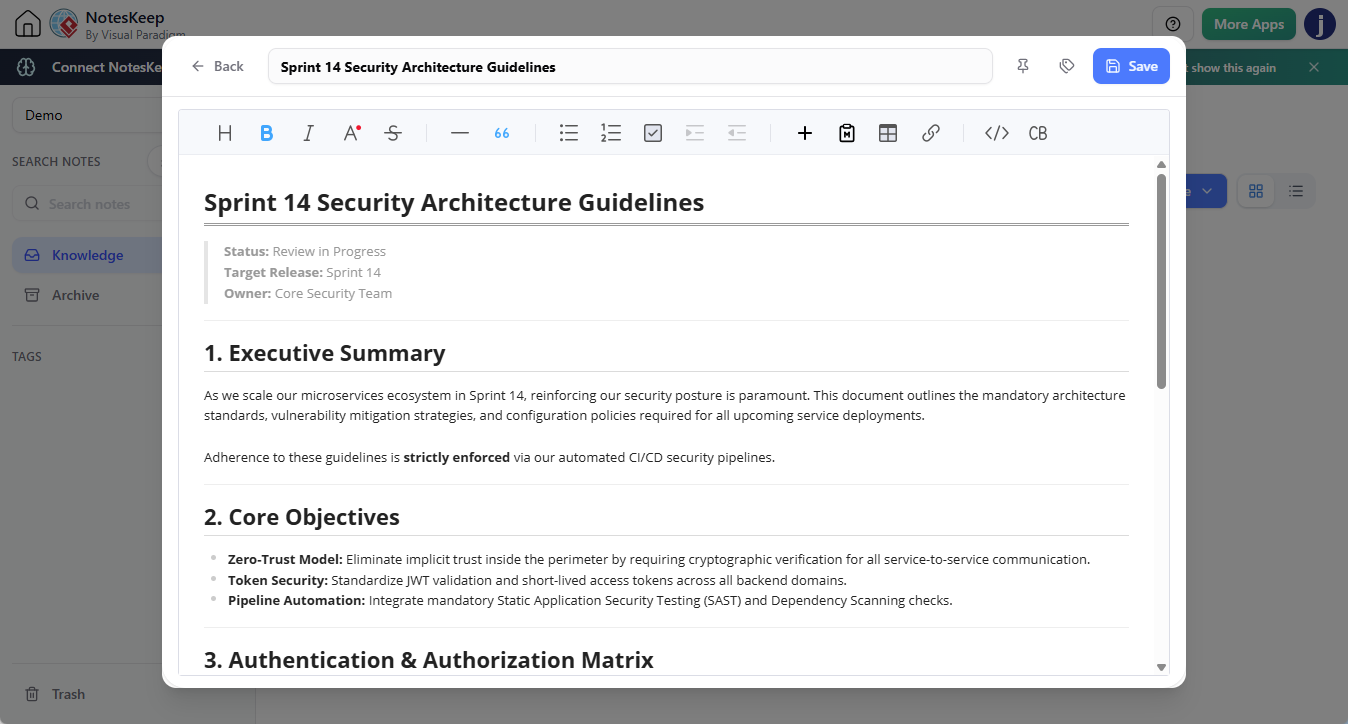
- Assign a Meaningful Title:
At the top of the editor page, type a clear, descriptive title for your note (e.g., “Sprint 14 Security Architecture Guidelines”). A precise title improves both human readability and semantic vector search efficiency for the AI engine. - Add Multi-Dimensional Tags (Optional):
Click the tag input field directly below or near the title header. Assign one or more custom tags (e.g.,security,backend,v2-release). Tagging helps you filter knowledge quickly in dedicated Tag Views later.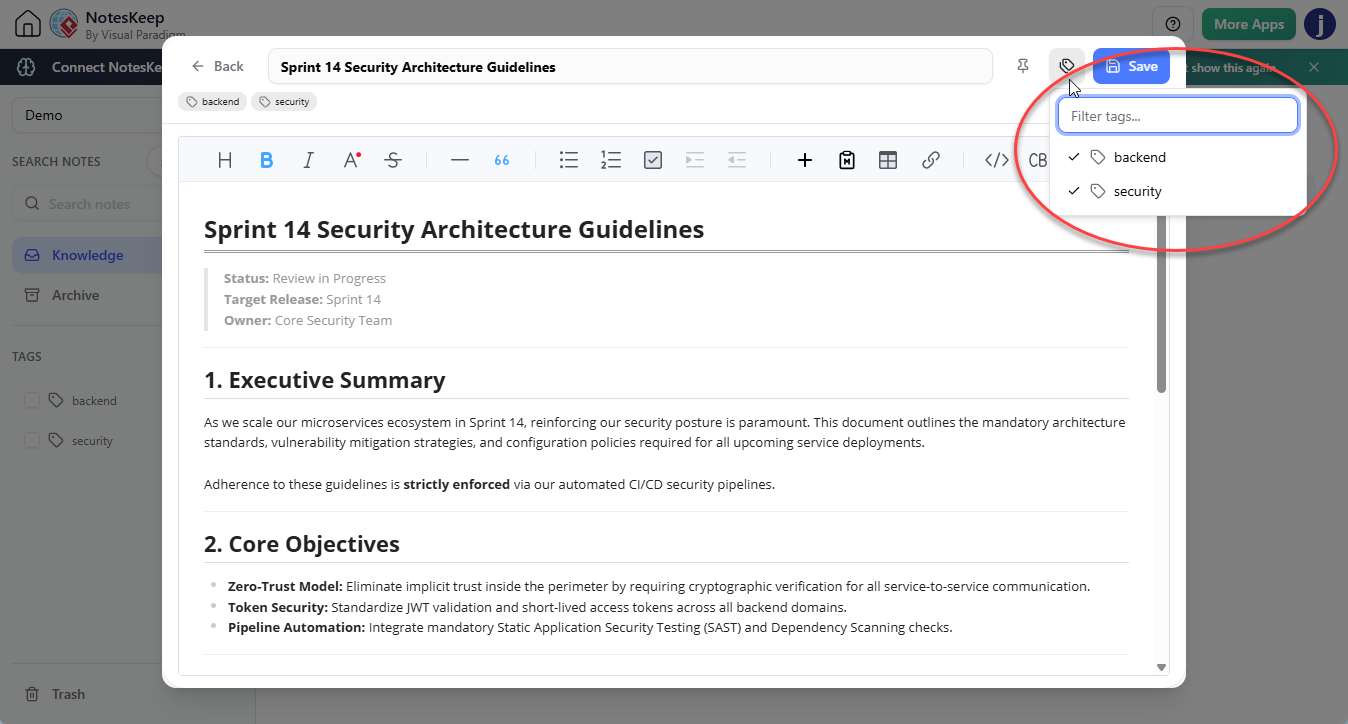
- Draft Your Content using the WYSIWYG Editor:
Use the rich-text editor to compose your note. NotesKeep supports comprehensive styling options to help format your ideas effectively:- Structural Headers (H1, H2, H3): Break long documents into logical sections.
- Rich Typography & Lists: Apply bold, italics, underline, bulleted lists, and numbered steps.
- Structural Tables: Insert custom tables to compare specifications or track action items.
- Formatted Code Blocks: Highlight code snippets for developer documentation.
- Hyperlinks: Embed internal or external URLs for complete reference material.
- Save and Ingest:
Click the Save button in the top right corner. Your note is immediately created, saved to your active project, and sent through the background AI ingestion pipeline.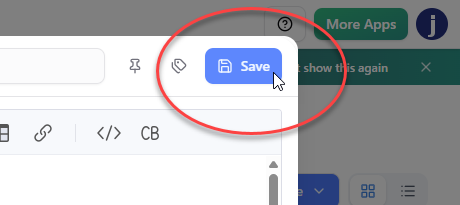
What Happens After You Save Your Note?
The moment you click Save, NotesKeep initiates a background pipeline designed to make your content AI-ready:
First, the text parser cleans and structures your raw inputs. Next, the content is processed through semantic vector embedding. Once complete, your note becomes fully accessible via the Visual Paradigm AI Chatbot. You can ask questions such as “What security rules did we establish in our recent notes?” and receive instant, cited answers based on the note you just wrote.
Best Practices for Writing High-Quality Notes in NotesKeep
To maximize the performance of your notes when interacting with the AI Chatbot, consider these tips:
- Be Specific with Terminology: Use clear domain terms, project codenames, and explicit stakeholder titles.
- Use Headings and Bullet Points: Well-structured text helps both team members and the RAG vector engine scan information accurately.
- Keep Notes Focused: Instead of writing a single massive document, break complex topics into focused, tagged notes organized within a single Project.
Looking for more tutorials?
Explore step-by-step guides for every feature in our centralized user guide hub.
Frequently Asked Questions (FAQ)
Can I edit my note after saving it?
Yes. You can open any note from your Knowledge page at any time to make edits. When you save your changes, NotesKeep automatically re-indexes the document to ensure the AI Chatbot works with the latest information.
Can I include images or technical drawings in my notes?
Absolutely. You can paste visual assets, diagrams, or architectural models directly into the note editor. Visual Paradigm NotesKeep utilizes Optical Character Recognition (OCR) and computer vision to read labels and text inside your uploaded images.
How do I make sure my note belongs to a specific team project?
Before creating your note, select your target project from the Project selector in the top-left menu. All notes created under that active selection will automatically inherit the project scope.