

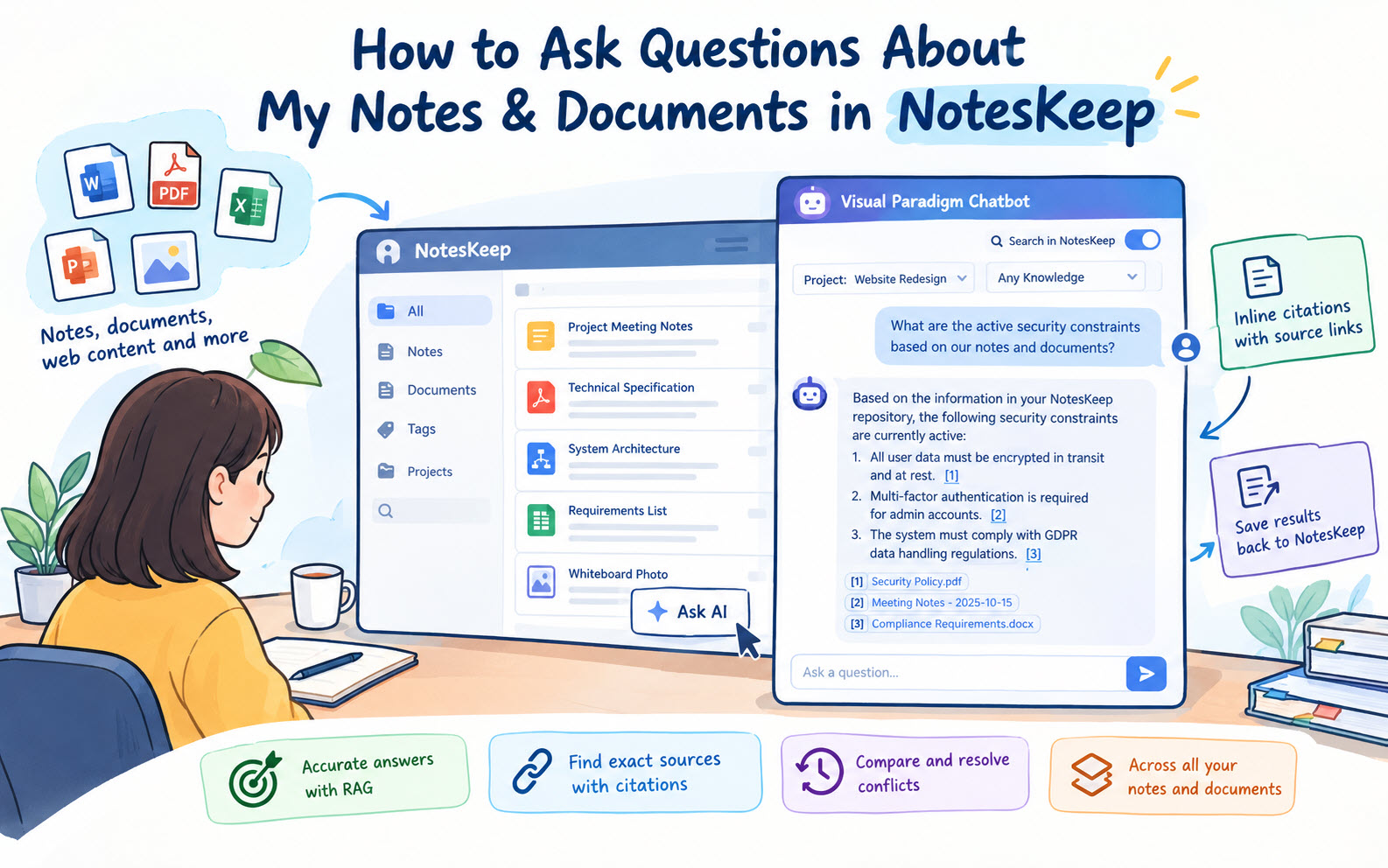
Reading through dozens of lengthy meeting transcripts, technical specification PDFs, and complex project notes to find a single detail consumes valuable hours. Even traditional keyword searches often fall short when you need answers that synthesize information across multiple files. Visual Paradigm NotesKeep bridges this gap by integrating natively with the Visual Paradigm AI Diagramming Chatbot, transforming static documentation into an interactive, conversational knowledge base powered by Retrieval-Augmented Generation (RAG).
Whether you need to extract active security constraints, reconcile conflicting requirements from stakeholders, or generate executive summaries, asking questions directly to your notes and documents yields instant, cited answers tailored to your active projects.
Why Query Your Knowledge Base with AI Chatbot?
Leveraging conversational AI to query your NotesKeep workspace provides several major efficiency benefits over manual file searches:
- Precision Retrieval-Augmented Generation (RAG): The AI Chatbot scans semantic vector embeddings across your notes and uploaded documents to deliver accurate, context-aware answers rather than simple keyword matches.
- In-Line Source Citation: Every answer provided by the AI includes inline, clickable source references pinpointing the exact note or document passage that supports the claim, making verification effortless.
- Temporal & Conflict Reconciliation: Ask the AI to compare chronological notes (such as daily standup logs) to identify superseded decisions, active requirements, or conflicting departmental inputs.
- Cross-Format Synthesis: Query combined knowledge across user-created notes, imported web articles, uploaded PDFs, Word docs, Excel spreadsheets, and whiteboard images simultaneously.
Method 1: Initiating AI Queries Directly from NotesKeep
When working inside your NotesKeep workspace, you can trigger targeted AI Chatbot sessions for a single entry or multiple selected files with a single click.
Asking Questions About a Single Note or Document
- Locate Your Target Item:
Open your project workspace in NotesKeep and find the specific note or document you want to analyze. - Click “Ask AI”:
Hover your cursor over the note or document card. On the bottom action toolbar, click the Ask AI button.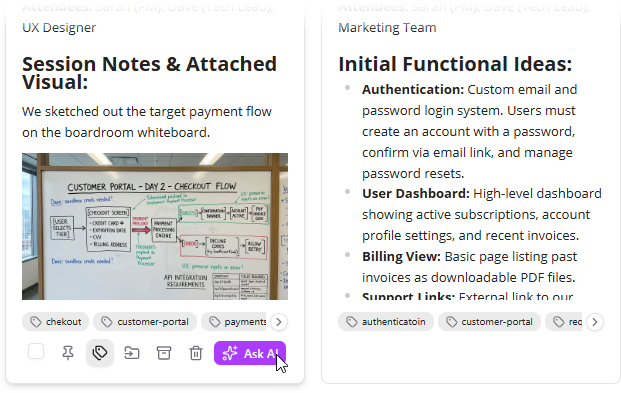
- Interact in Visual Paradigm Chatbot:
You will be redirected automatically to the Visual Paradigm Chatbot interface with that specific note or document already selected as your active search scope. Type your prompt (e.g., “Summarize the key action items from this meeting note”) and submit to receive instant insights.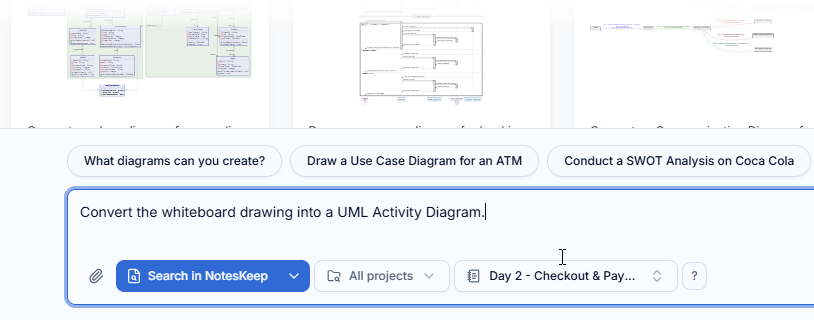
Asking Questions Across Multiple Notes and Documents
- Select Multiple Knowledge Entries:
In your Knowledge listing view, hover over your target notes or documents and tick the selection checkbox in the bottom right corner of each card. - Click “Ask AI” in the Top Action Bar:
Once all target files are selected, click the global Ask AI button that appears in the top navigation menu bar.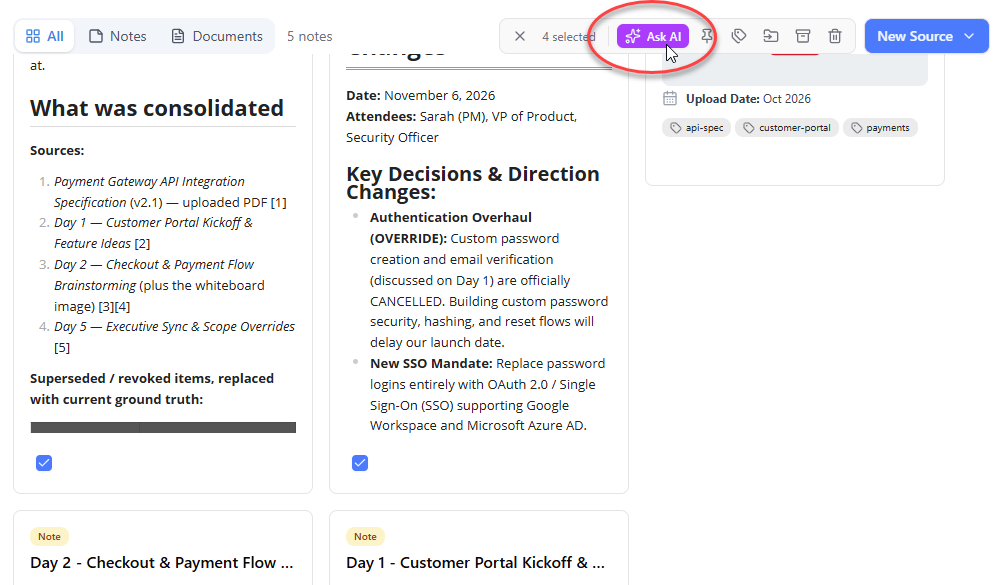
- Submit Multi-Document Queries:
The system launches the Chatbot with all selected items scoped as source context. You can now ask multi-source questions such as “Compare the functional requirements in Note A against the security policies in Document B.”
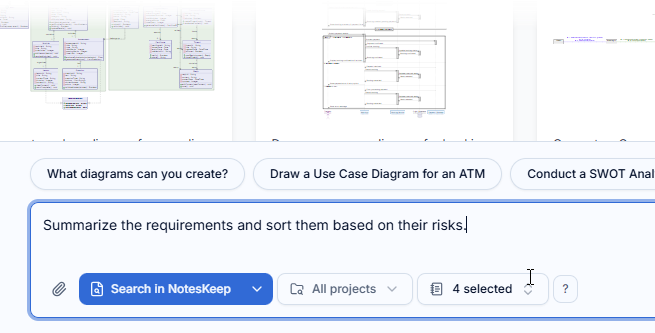
Method 2: Initiating Queries from Within Visual Paradigm Chatbot
If you are already inside the Visual Paradigm Chatbot interface, you can enable NotesKeep integration and configure search scoping directly from your prompt window.
- Enable “Search in NotesKeep”:
At the bottom of the Chatbot interface, locate the prompt input area and turn on the Search in NotesKeep toggle switch. - Select Your Project Scope:
Enabling the toggle reveals a Project selection combo box to its right. Click the dropdown and select the specific project that contains your documentation. - Define Note & Document Filters:
Selecting a project opens a secondary selection dropdown to specify individual knowledge scope. Choose specific notes/documents or select broad scope options such asAny Knowledge,Any Documents, orAny Notes.
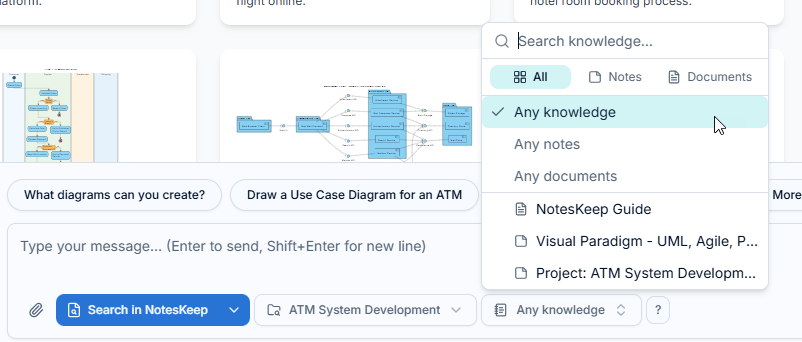
- Enter Prompt and Receive AI Output:
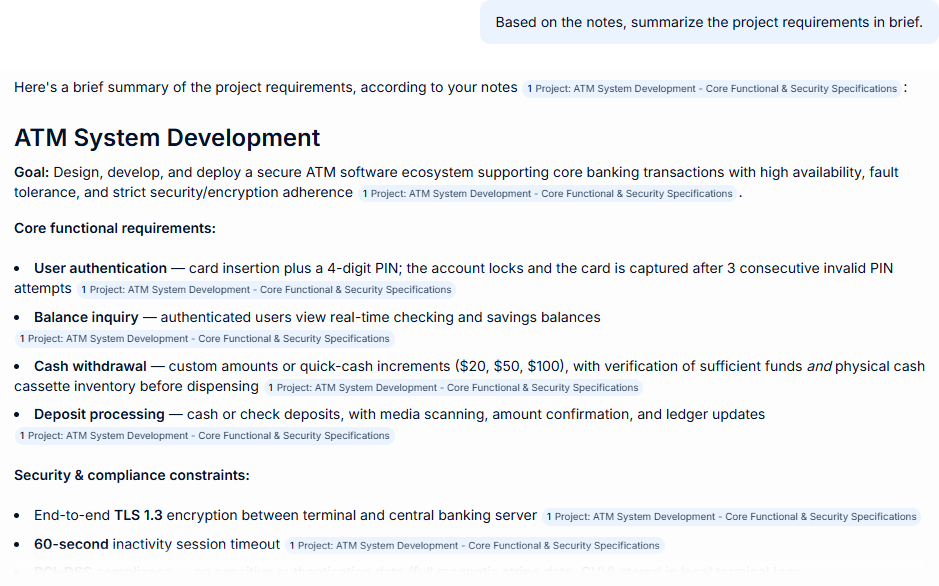
Type your question into the prompt field (e.g., “What are our active deployment constraints based on our notes?”) and click send. The AI analyzes your scoped repository, delivers a detailed answer, and provides clickable inline citations.
Best Practices for Formulating Effective AI Queries
To obtain the most detailed and accurate answers from your NotesKeep repository, follow these prompt engineering tips:
- Be Specific About Scope: Limit search scopes to specific projects or tagged assets when asking highly specialized technical questions.
- Ask for Comparisons: Utilize prompts like “What are the differences between our early project scope notes and our final PDF spec?” to highlight discrepancies.
- Request Visual Synthesis: Ask the AI to output structured responses that can be converted into diagrams (e.g., “Based on these architecture notes, generate a UML class diagram text format”).
Frequently Asked Questions (FAQ)
How do in-line citations work in Chatbot responses?
When the AI Chatbot generates a response using NotesKeep data, it attaches clickable reference tags next to facts and claims. Clicking a citation opens the exact originating note or uploaded document in NotesKeep, highlighting the supporting text.
Can I send AI Chatbot answers back into NotesKeep?
Yes! Visual Paradigm Chatbot features a “Send to NotesKeep” button (or Derive & Keep Knowledge Loop). With a single click, you can save synthesized AI answers, executive summaries, or newly generated technical diagrams directly back into your project workspace as structured notes.
What license is required to use AI Chatbot with NotesKeep?
Using scoped RAG queries, multimodal computer vision analysis, inline citations, and AI diagram generation requires VP Online Deluxe Edition or VP Desktop Professional Edition (or higher with active software maintenance).