

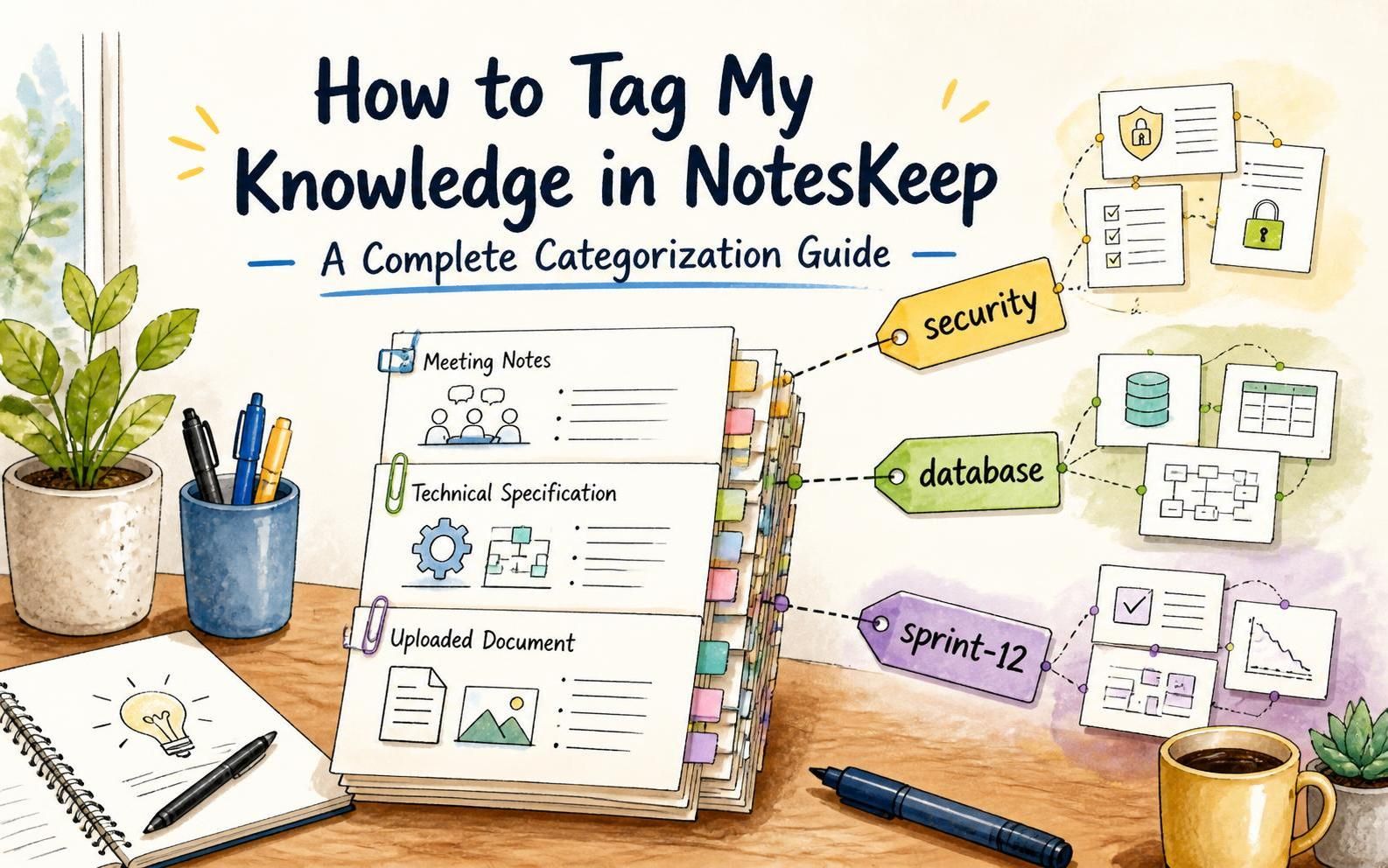
As your project grows, your knowledge base expands into dozens or hundreds of notes, meeting logs, technical specifications, and uploaded documents. Without a structured categorization system, locating critical information quickly becomes frustrating and time-consuming. Visual Paradigm NotesKeep solves this problem with a robust Multi-Dimensional Tagging System designed to help teams organize, categorize, and instantly retrieve notes and documents across complex enterprise environments.
By tagging your knowledge in NotesKeep, you transform a growing collection of unstructured files into an organized knowledge graph, enabling faster manual navigation and enhanced semantic context for AI Chatbot queries.
Why Is Tagging Your Knowledge Essential in NotesKeep?
Tagging acts as a flexible, cross-cutting metadata layer that compliments project folder structures. Applying custom tags across your notes and uploaded documents provides critical operational benefits:
- Cross-Project Metadata Alignment: Group related knowledge assets across different projects using shared tags such as
security-audit,v2-launch, orcompliance. - Instant Tag View Filtering: Access dedicated Tag Views on the left navigation panel to isolate and inspect all knowledge assets tagged with specific keywords in a single click.
- Enhanced AI RAG Retrieval: Multi-dimensional tags give the Visual Paradigm AI Diagramming Chatbot extra metadata context, allowing you to scope AI queries precisely to specific topic tags.
- Eliminate File Duplicate Overhead: Unlike rigid single-folder structures, a single note or document can carry multiple tags (e.g.,
database,sprint-12,high-priority) without creating duplicate copies.
Two Ways to Tag Your Notes and Documents in NotesKeep
NotesKeep provides two convenient methods for adding and managing tags—either while editing individual entries or in bulk directly from the Knowledge overview list.
Method 1: Tagging Inside the Note Editor or Document Viewer
This approach is ideal when creating new content or performing deep edits on an individual note or document viewer screen.
- Open Your Note or Document:
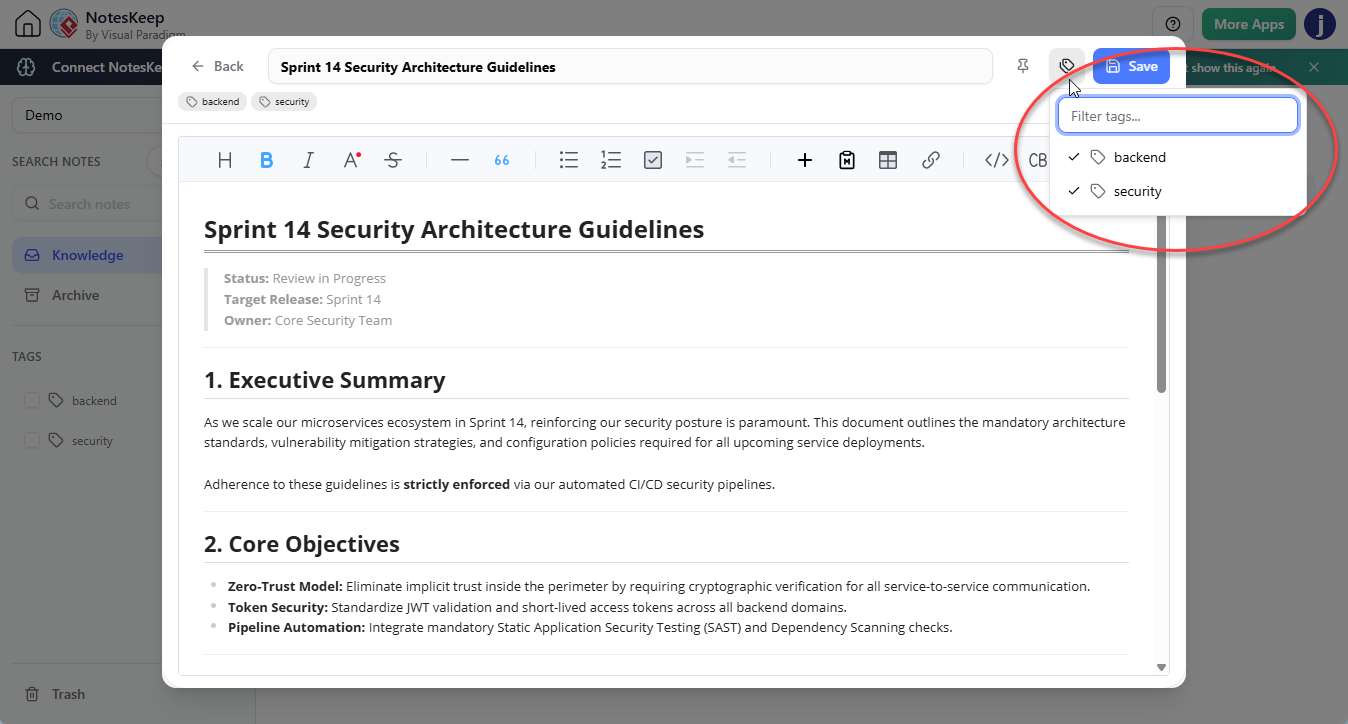
Click on any note or document from your Knowledge workspace to open the full rich-text editor or document viewer. - Locate the Tag Input Header:
At the top of the editor page, directly below or near the title area, locate the tag input field. - Add Custom Tags:
Type your desired tag keyword (e.g.,architecture,ui-ux,q3-goals) and pressEnteror select from existing suggestions. You can add multiple tags to a single document.
- Save Changes:
Click Save at the top right corner. The newly assigned tags are updated immediately and indexed into the system metadata.
Method 2: Direct Tagging in the Knowledge Listing View
This method is designed for quick metadata management across multiple notes and documents without needing to open each editor full-screen.
- Navigate to the Knowledge Overview:
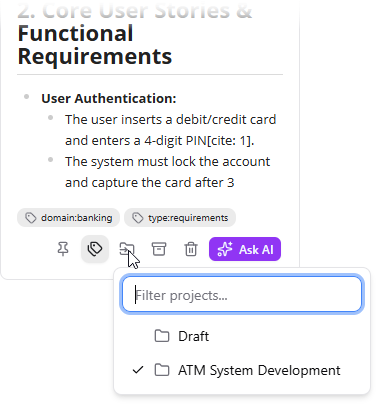
Open your active project Knowledge page where all notes and documents are listed in grid or list view. - Access Quick Tagging on Item Card:
Hover your mouse cursor over the target note card or document entry. Click the Tag button or tag icon on the item card toolbar. - Assign or Edit Tags:
In the quick tag popover, select existing tags from the project taxonomy list or type a new tag name. Confirm your selection to apply the tag immediately.
How to Filter and View Notes by Specific Tag
Once your notes and documents are tagged, retrieving specific knowledge categories takes only a moment:
- Locate the Tag Navigation Panel:
Look at the left-hand sidebar menu of your NotesKeep workspace. You will see a dedicated Tags section listing all custom tags active in your environment. - Click a Tag to Open Tag View:
Click on any tag (e.g.,security). The right-hand main workspace will update immediately to display only the notes and documents assigned to that specific tag.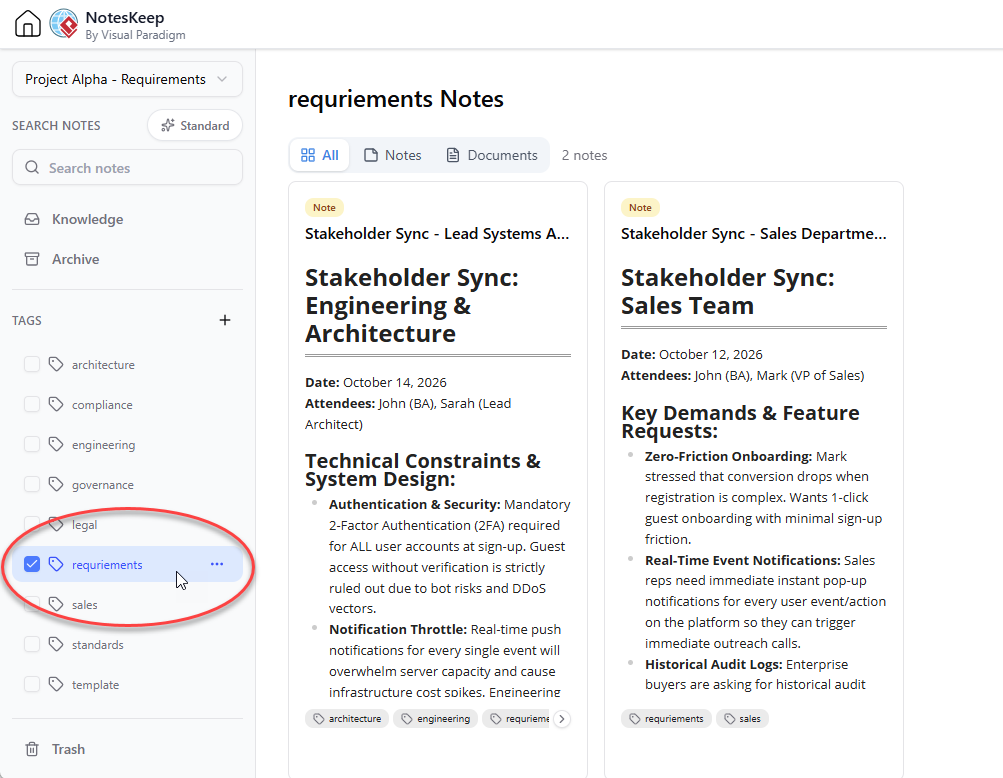
- Combine with Search & Filters:
Within a Tag View, you can further refine your results using the category tabs (All / Notes / Documents) or combine tag views with the full-text keyword search bar.
Best Practices for Effective Knowledge Tagging
To keep your team workspace clean and highly navigable, adopt these tagging guidelines:
- Use Standardized Conventions: Agree on naming conventions with your team (e.g., lowercase hyphenated tags like
api-v2instead of mixingAPI_v2andApiV2). - Combine General and Specific Tags: Apply broader departmental tags (e.g.,
engineering) alongside granular task tags (e.g.,oauth2-bugs). - Audit Tags Periodically: Review the left sidebar Tag menu periodically to clean up unused or duplicate tags and keep your knowledge taxonomy lean.
Looking for more tutorials?
Explore step-by-step guides for every feature in our centralized user guide hub.
Frequently Asked Questions (FAQ)
Can a note or document have multiple tags in NotesKeep?
Yes. NotesKeep supports multi-dimensional tagging, meaning you can assign as many custom tags as necessary to a single note or document.
Can I search for tagged documents using the AI Chatbot?
Yes! The Visual Paradigm Chatbot reads all metadata, including custom tags. You can scope your AI RAG queries directly to specific tags within NotesKeep to receive targeted answers and in-line citations.
What happens to tags if I move a note to a different project?
When you transfer a note or document between projects, its assigned tags remain attached to ensure your classification structure stays intact.