


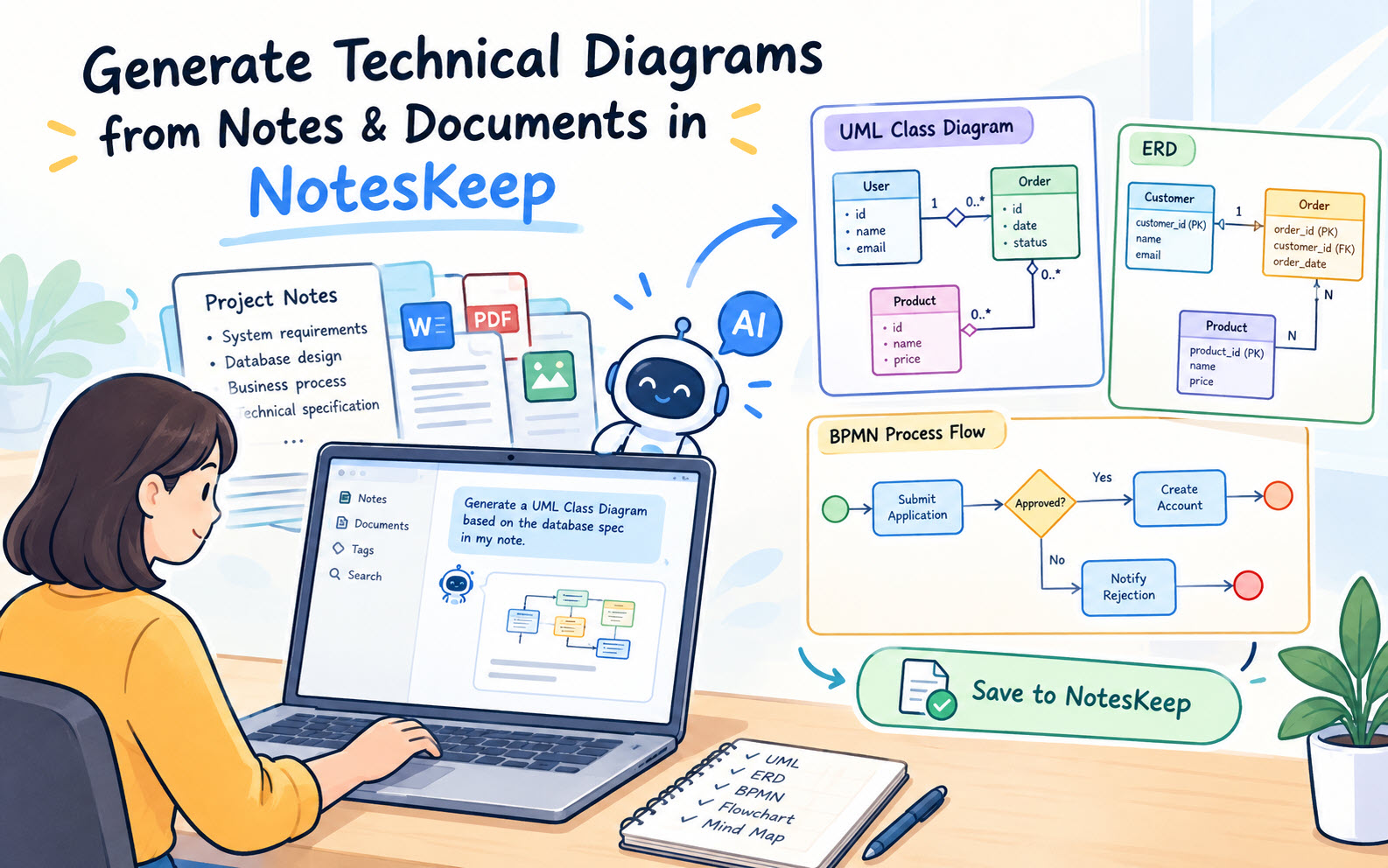
Manually drawing system architectures, data models, and process workflows from written specifications can take hours of tedious effort. Written requirements are often ambiguous, making it difficult for developers and stakeholders to visualize complex system designs. Visual Paradigm NotesKeep solves this problem by combining AI knowledge management with domain-trained visual modeling engines, allowing you to instantly transform unstructured text specifications into professional technical diagrams.
Natively integrated with the Visual Paradigm AI Diagramming Chatbot, NotesKeep translates textual notes and uploaded specifications into actionable visual software engineering models, including UML diagrams, Entity Relationship Diagrams (ERDs), BPMN workflows, flowcharts, and mind maps.
Why Generate Diagrams Directly from Your Notes?
Automating visual modeling directly from your project documentation provides significant workflow advantages:
- Instant Visual Synthesis: Bridge the gap between textual requirements and visual architecture in seconds without manual shape drawing.
- Support for Industry Standards: Generate standard software engineering and business notation models, including UML (Class, Sequence, Use Case), ERDs, BPMN, C4 Architecture, DFDs, Flowcharts, and Mind Maps.
- Derive & Keep Closed-Loop Workflow: Commit AI-generated diagrams directly back into your NotesKeep project repository as structured notes with a single click.
- Reduced Requirements Ambiguity: Visualizing complex logic early helps spot missing edge cases, architectural bottlenecks, and data modeling errors before implementation begins.
How to Generate a Technical Diagram from Notes (Step-by-Step)
- Scope Your Documentation in NotesKeep or Chatbot:
In NotesKeep, select the target note or document containing your technical specification and click Ask AI (or open Visual Paradigm Chatbot, enable Search in NotesKeep, and select your project and note scope). - Submit a Diagram Generation Prompt:
In the Chatbot prompt field, specify the type of diagram you want to create based on your notes. For example:- “Generate a UML Class Diagram based on the database spec in my selected note.”
- “Create a BPMN process flow diagram from the customer onboarding steps described in our document.”
- “Generate an ERD showing entity relationships described in our system design notes.”
- Review the AI-Generated Visual Output:
The AI Chatbot analyzes your scoped notes, processes structural relationships, and renders the technical diagram directly in the chat interface alongside clear inline source references. - Save Diagram Back to NotesKeep (“Derive & Keep”):
Click the Send to NotesKeep button on the generated diagram output. The diagram and its accompanying context are instantly committed back to your active NotesKeep project as a newly created, structured note.
Best Practices for Writing Diagram-Ready Notes
To ensure the AI generates accurate, highly detailed diagrams, format your specification notes effectively:
- Define Clear Entities and Attributes: Explicitly state object properties, data types, and entity relationships (e.g., “User has many Orders”).
- Outline Sequential Steps Clearly: For process diagrams like BPMN or UML Sequence diagrams, present workflow steps using numbered lists or explicit conditionals (e.g., If/Then statements).
- Use Consistent Domain Terms: Use uniform naming conventions across your notes to ensure consistent shape and connection labels.
Looking for more tutorials?
Explore step-by-step guides for every feature in our centralized user guide hub.
Frequently Asked Questions (FAQ)
What diagram types can I generate using NotesKeep and AI Chatbot?
You can generate UML Class, Sequence, and Use Case Diagrams, Entity Relationship Diagrams (ERDs), BPMN business process flows, C4 Architecture Models, Data Flow Diagrams (DFDs), Flowcharts, and Mind Maps.
Can I edit the generated diagram after saving it to NotesKeep?
Yes. Saved diagrams are embedded directly into NotesKeep notes where you can touch up content or launch Visual Paradigm’s native ecosystem editing tools.
Which licensing tier is required for AI diagram generation?
AI diagram generation requires VP Online Deluxe Edition or VP Desktop Professional Edition (or higher with active software maintenance).