

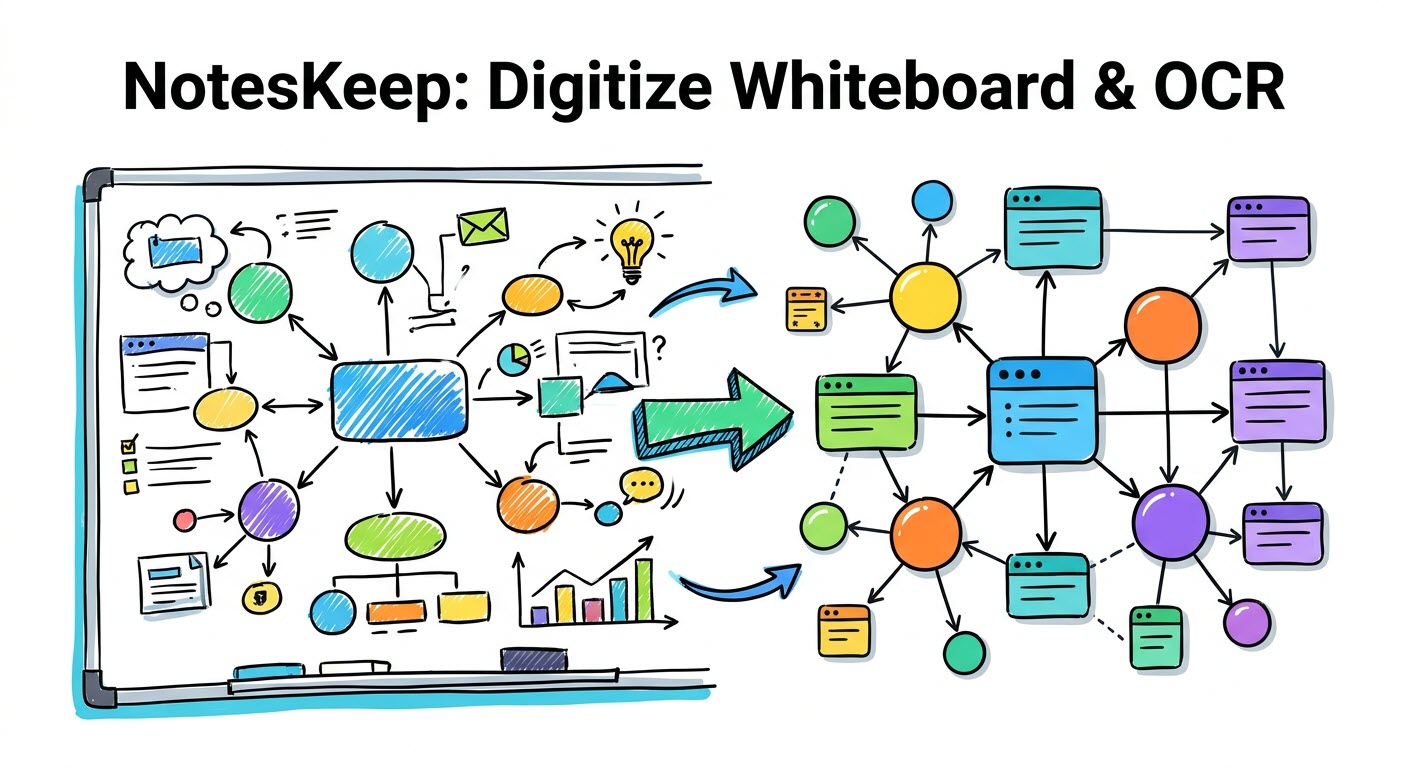
During brain-storming sessions and architecture meetings, critical workflows and data models are frequently drawn on physical whiteboards or captured in informal screenshots. Unfortunately, these visual assets usually end up buried in smartphone camera rolls or disconnected file folders where their textual information remains unsearchable. Visual Paradigm NotesKeep solves this challenge with its integrated Multimodal Computer Vision and OCR Pipeline.
By uploading whiteboard photos, scanned PDF reports, and graphical screenshots, NotesKeep automatically extracts handwritten labels, shape structures, and graphical annotations, transforming static image files into searchable, AI-ready knowledge.
Why Digitize Visual Assets and Whiteboards in NotesKeep?
Ingesting visual diagrams and scanned specifications through computer vision provides significant operational benefits:
- Automated Text & Shape Parsing: Optical Character Recognition (OCR) extracts text from images, diagrams, whiteboard sketches, and scanned specification pages automatically.
- Multimodal Vector Indexing: Extracted image metadata and OCR text are indexed directly into NotesKeep’s semantic vector database, making image contents queryable by the Visual Paradigm AI Diagramming Chatbot.
- Convert Sketches to Digital Standards: Upload a smartphone photo of a whiteboard flowchart and ask the AI Chatbot to convert it into a formal BPMN or UML model.
- Searchable Visual Repository: Find specific diagrams or scanned documents using full-text search keywords that match text embedded inside images.
How to Upload and Digitize Whiteboard Photos or Scanned Documents
- Capture Your Visual Asset:
Take a clear photo of your whiteboard sketch, or capture a screenshot of an architectural diagram or scanned spec document. - Upload to NotesKeep:
Navigate to your active project workspace. Click New Source > Upload Document, or simply drag and drop the image file (.png,.jpg,.heic,.webp, or scanned.pdf) directly into the NotesKeep window. - Automated Background Processing:
NotesKeep automatically runs the image through its computer vision and OCR engine. The system extracts text labels, structural shapes, and annotations without requiring manual transcription. - Query the Digitized Image via AI:
Hover over your uploaded image note, click Ask AI, and interact with the Visual Paradigm Chatbot. You can ask queries such as:- “Explain the system flow depicted in this uploaded whiteboard photo.”
- “Extract all action items written on the meeting whiteboard into a checklist.”
- “Convert this whiteboard sketch into a digital UML Sequence Diagram.”
Best Practices for Capturing Whiteboards for High OCR Accuracy
To ensure optimal character recognition and computer vision parsing, follow these tips when photographing whiteboards or visual specs:
- Ensure Good Lighting & High Contrast: Avoid harsh reflections, heavy shadows, or low-light glare over handwritten text.
- Keep Handwriting Legible: Write clearly using dark markers on clean whiteboard surfaces.
- Capture Full Frame: Frame the entire diagram or flowchart clearly within the photograph without cutting off peripheral shapes or legend notes.
Frequently Asked Questions (FAQ)
What image formats are supported for OCR and computer vision in NotesKeep?
NotesKeep supports all standard image and graphic formats including .png, .jpg, .jpeg, .gif, .webp, .svg, .bmp, .tif, .tiff, .avif, .heic, and .heif, as well as scanned multi-page .pdf documents.
Can the AI Chatbot generate digital diagrams from my whiteboard photos?
Yes! Once the vision engine parses the shapes and text in your photo, you can prompt the AI Chatbot to render a clean, formal digital diagram (such as BPMN, UML, or ERD) based on the whiteboard drawing.
Do I need to manually transcribe text inside uploaded images?
No. The automated ingestion pipeline handles text extraction and semantic indexing automatically as soon as the file is uploaded.